
Managing your calendar and your teams' calendars
eKo's Calendar module is a real asset for efficiently managing your activities and those of your teams.

The Calendar module is used to manage everyone's and everything's schedules. It therefore concerns eKo users, but it can also be used to manage shared equipment (meeting rooms, electronic equipment, vehicles, etc.).
As well as recording appointments with your customers, it also lets you set up reminders and classify the various events that fill your week according to a legend shared by all users in your company. So in Calendar management we do not talk about appointments, but about events.
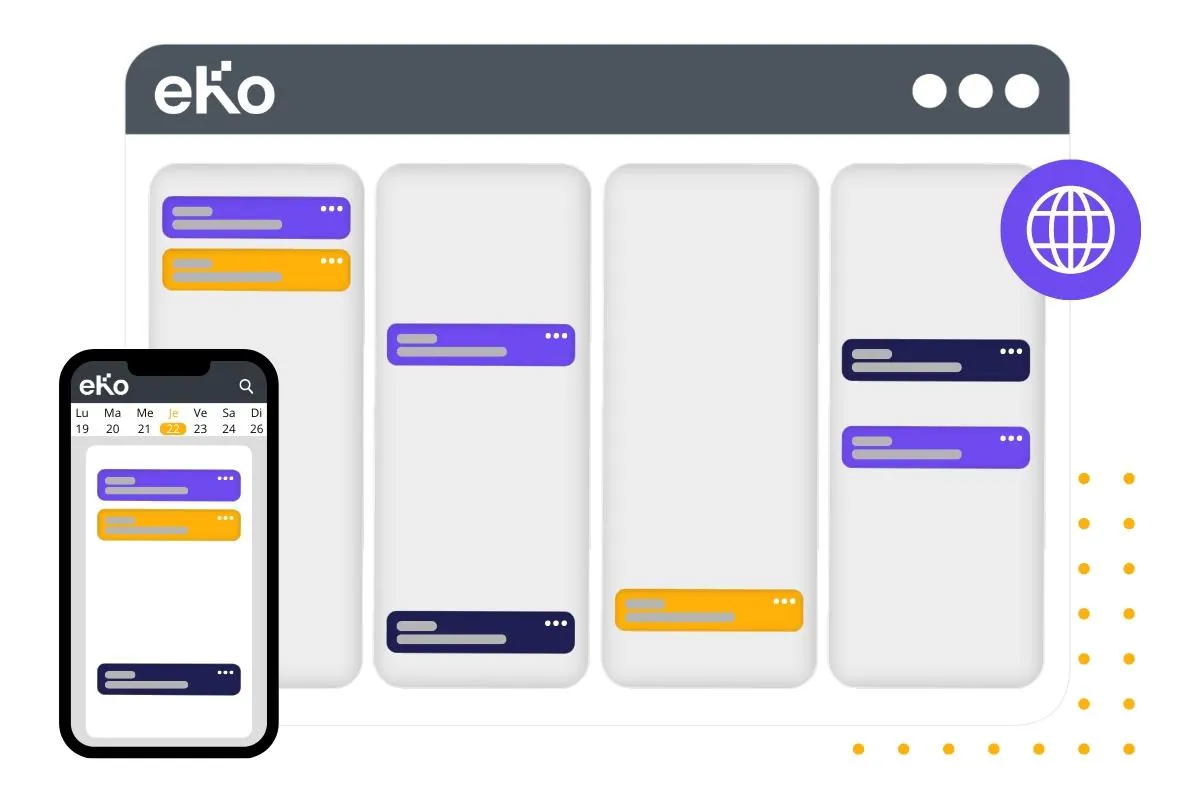
1. Create an event
An event can be created in two ways: from a contact record (Individual, Company or Supplier) or directly from your calendar.
From a contact record:
1. First step: Log in to eKo with your username and password (you can use your computer or the device of your choice: tablet, phone…).
2. Go to a contact record (from the search bar, for example).
3. Click the Create button, then select Event, at the top right. You can also click the calendar icon located directly on the contact panel.
4. And there you go: eKo opens your calendar, ready to record a new event.
From your calendar:
1. First step: Log in to eKo with your username and password (you can use your computer or the device of your choice: tablet, phone…).
2. Go to the Calendar module in the navigation bar on the left.
3. Choose a date, then create a new Event directly in the schedule.
4. And there you go: eKo opens your calendar, ready to record a new event.
2. Calendar interface and options
The calendar interface offers a clear, structured view of your schedule. Your calendar is ready to record an event for the chosen contact. You will find:
- The weekly schedule, set to 1, 5, 6 or 7 days.
- The notification reminding you of the name of the customer for whom you are scheduling an event. It is located in the box at the bottom centre of the screen.
- The week planner, which lets you view and select past and upcoming weeks.
- The selector for viewing your colleagues' calendars.
- The Print function for printing your schedule for one or more days, at the bottom right.
The New Event window opens, showing the name of the customer for whom you are scheduling an event. Fill in the fields.
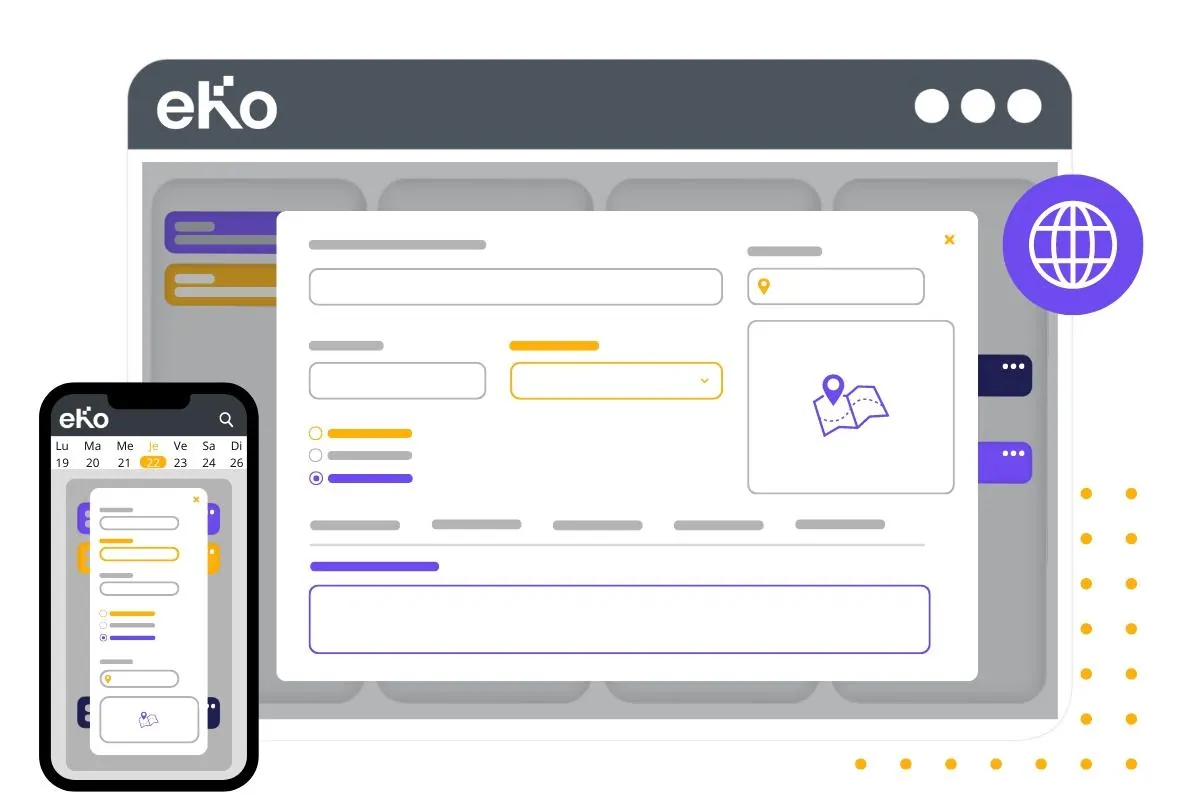
Your event is saved and placed on the schedule grid.
The duration of the event can be lengthened or shortened by moving the slider.
And drag and drop lets you move it within the same week's schedule, or to another day of the month by dragging and dropping it onto the desired day in the week planner.
3. Event summary
All events scheduled with a customer are listed on their customer record in the Event tab. The last five are shown at a glance, and all events in the customer relationship remain accessible in the History tab.
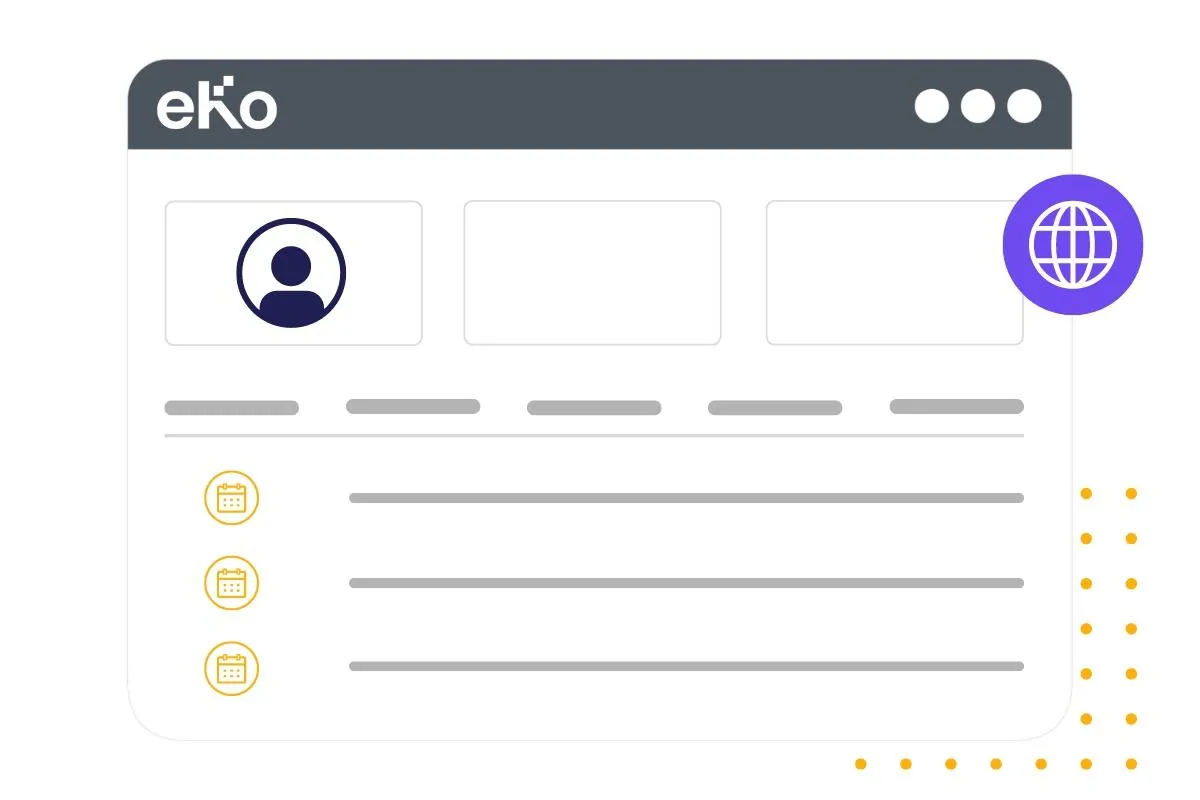
At a single glance, you can see who created the event, on what date, and all the necessary information in the Comment area.
Conclusion
The eKo CRM Calendar module is a real asset for efficiently managing your activities and those of your teams. Whether for planning events, coordinating resources or tracking interactions with your customers/suppliers, this tool gives you all the flexibility and organisation you need to make the most of your time.