
How to create a credit note in eKo
Find out how to easily create a credit note with eKo CRM to optimise the management of your sales transactions.

An invoicing error? Not a problem: eKo CRM is designed to make your daily life simpler. Thanks to its intuitive interface, you can create credit notes in just a few minutes. This tutorial will guide you step by step through the procedure, so you can correct any error quickly and efficiently.
Here are the steps to create a credit note:
1. Log in to eKo with your username and password (from your computer or the device of your choice: tablet, phone...).
2. Go to your customer's record, then click the yellow Create > Credit note button at the top right.
3. Several options are available to you:
- Create the credit note from another document: you can choose to retrieve the content of the invoice to be credited.
- Create a blank credit note: you can create the credit note from scratch.
4. In this example, we have chosen the option of retrieving the information from the invoice for which a credit note needs to be generated.
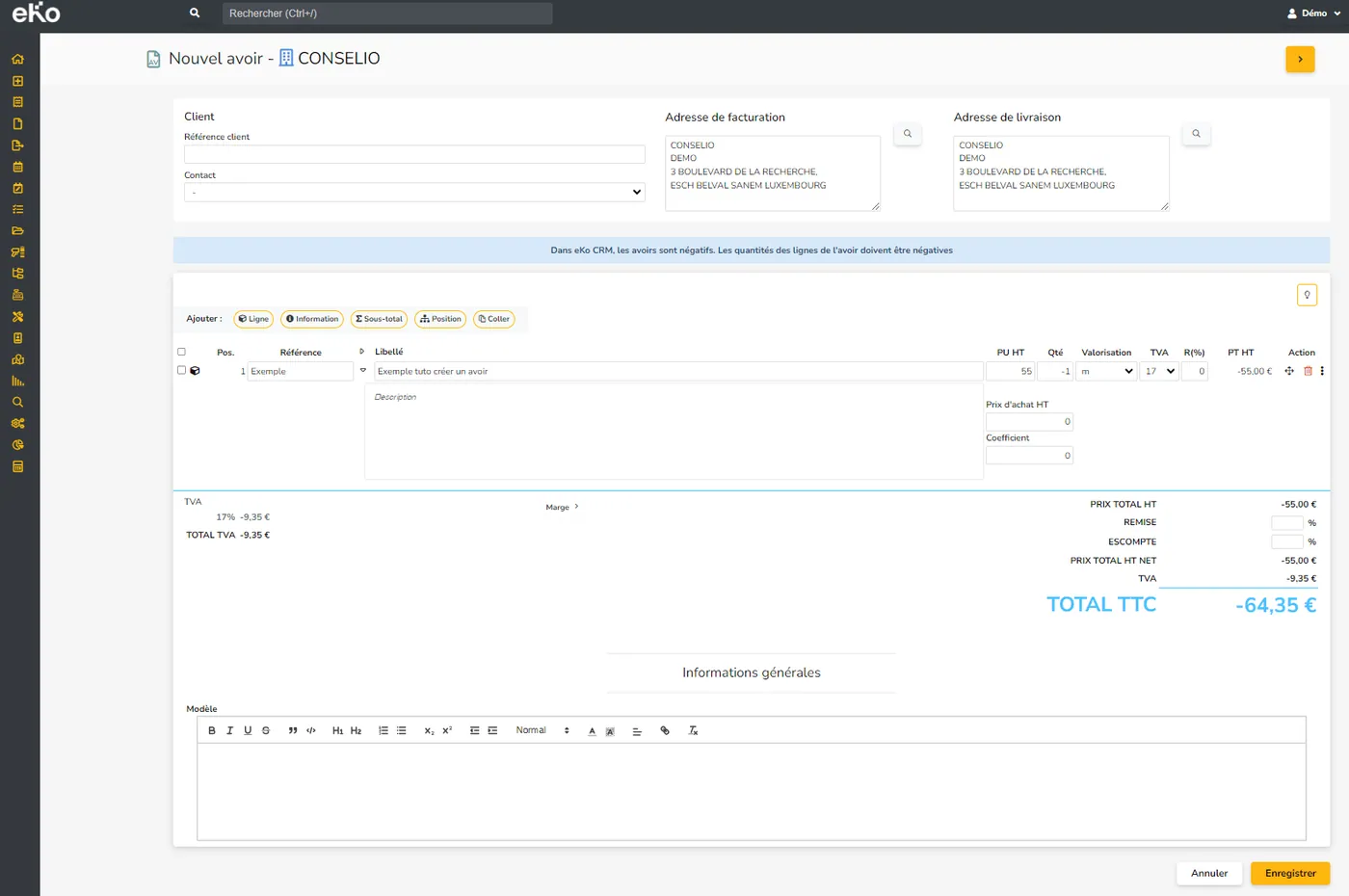
Fill in all the fields: credit note title, sales representative, confidential note…
5. For a partial credit note: delete the items you do not want to include, then click "Save". Conversely, for a full credit note: simply click "Save".
Note: you will notice that the amounts are negative.
6. When your credit note is ready, validate it by clicking the yellow "Validate" button at the top right.
7. Well done, you have created a credit note! You can now print it, download it as a .pdf, attach a file, or simply email it to your customer in a single click!
To go further, did you know that with eKo you can also track your payments received and refunds? eKo lets you keep an eye on all your financial transactions. Manage your finances more efficiently and responsively. Curious to discover all of eKo's features? This way!